
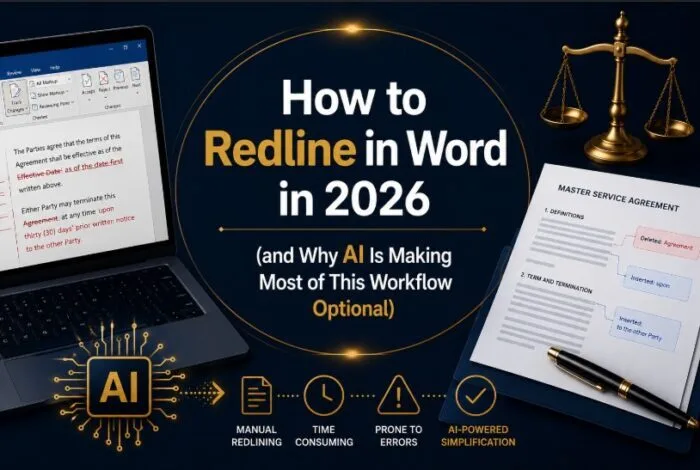

To redline a document in Microsoft Word, turn on Track Changes from the Review tab, make your edits directly in the document, and Word will mark insertions with an underline and deletions with a strikethrough so the other party can see what changed. That has been the canonical answer for two decades. As of April 2026, it is also an answer with a much shorter shelf life. Anthropic’s Claude for Word, Microsoft Copilot, and the major contract lifecycle management platforms now produce native tracked changes inside Word automatically, which means the manual redlining workflow most legal teams still use is being structurally replaced.
This article covers both. It walks through how to redline in Word the traditional way, because that is still the right answer for low-volume work and for understanding what AI tools are actually doing on your behalf. It then covers what changed in April 2026, what CLM platforms have offered for years, and how to decide which approach fits your situation.
How to redline in Microsoft Word using Track Changes
Redlining in Word is not a separate feature. The capability is called Track Changes, and it has lived under the Review tab in the Word ribbon since the late 1990s. The output is what most legal and procurement professionals still call a “redline.” The full official documentation lives at Microsoft Support. Six steps cover the workflow.
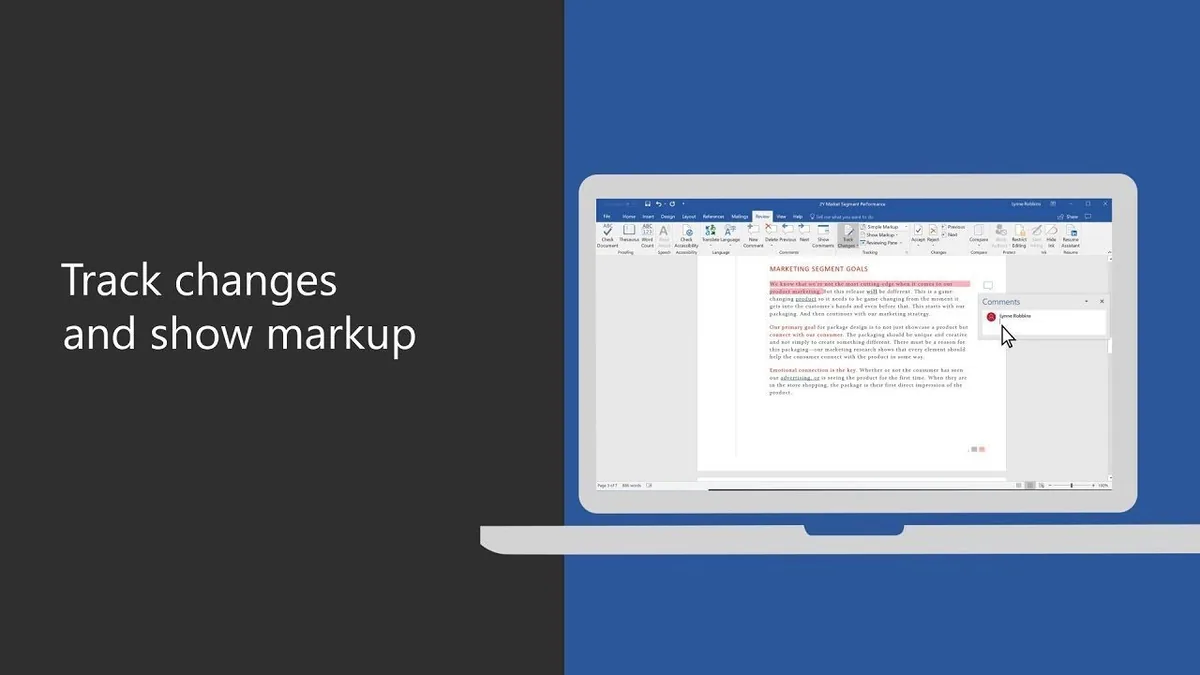
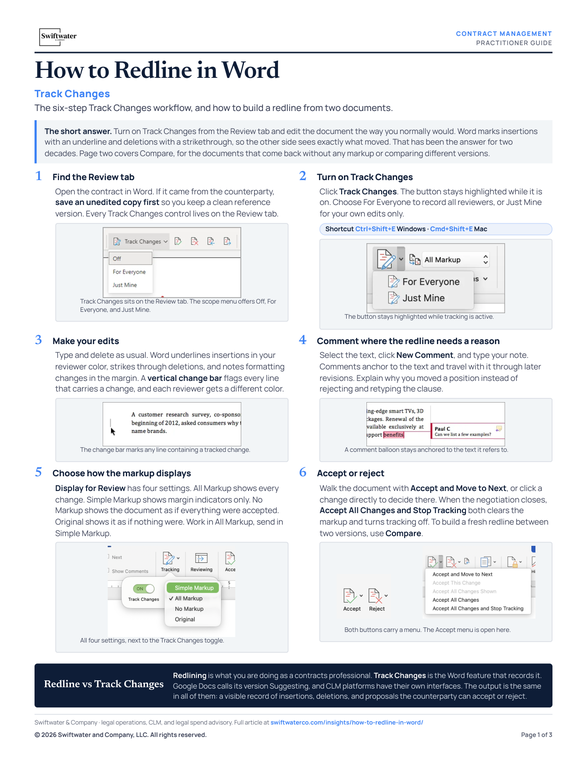
Step 1. Open the document and locate the Review tab. Open the contract or document you want to mark up in Microsoft Word. If the document arrives from a counterparty, save a copy first so you have an unedited reference version. The Review tab in the ribbon is where every Track Changes control lives. Three drop-down options control who gets tracked: Off, For Everyone, or Just Mine.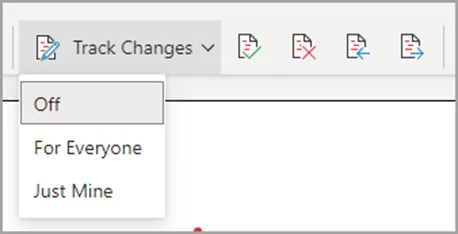
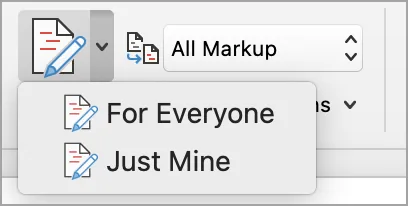
Step 2. Turn on Track Changes. Click the Track Changes button in the Review tab. The button stays highlighted while the feature is active. The keyboard shortcut is Ctrl+Shift+E on Windows and Cmd+Shift+E on Mac. To track everyone’s changes, choose For Everyone. To track only your own, choose Just Mine.
Evaluating or implementing a CLM platform?
We have guided legal departments through selection, implementation, and adoption, without the vendor bias. Let us talk about where you are and what you actually need.
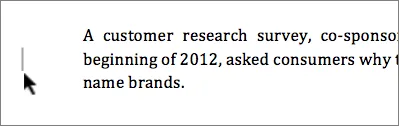
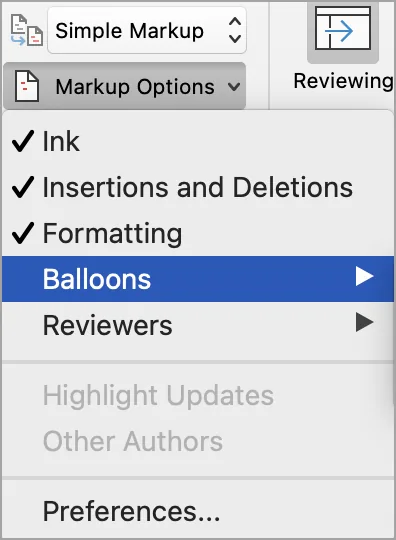
See CLM ServicesStep 3. Make your edits. Type, delete, or modify text the way you normally would. Word will automatically mark insertions with an underline in your assigned reviewer color, deletions with a strikethrough, and formatting changes in a margin note. Each reviewer who edits the document gets their own color, so you can see who changed what at a glance. A vertical change bar appears in the margin next to any line containing a tracked change.
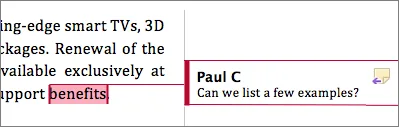
 Step 4. Add comments where needed. Highlight the text you want to comment on, click New Comment in the Review tab, and type your note. Comments anchor to specific text and stay attached as the document moves through revisions. Use comments to explain the reasoning behind a redline rather than rejecting and retyping.
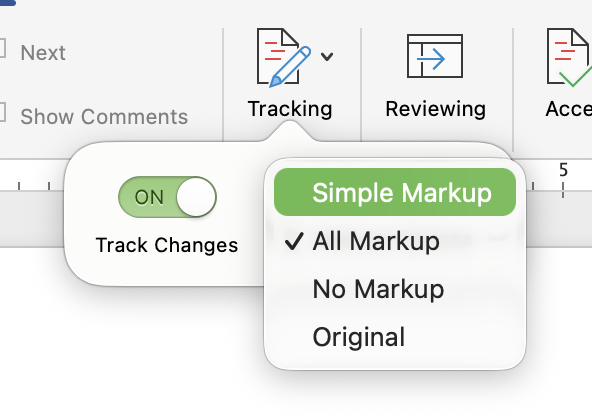
 Step 5. Choose how you want to view the markup. The Display for Review dropdown in the Review tab gives you four options: All Markup shows every change, Simple Markup shows only the margin indicators, No Markup shows the document as if all changes were accepted, and Original shows the document as if no changes were made. Use All Markup for active editing and Simple Markup when sharing with someone who only needs to see the proposed final state.
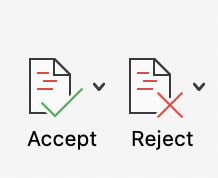
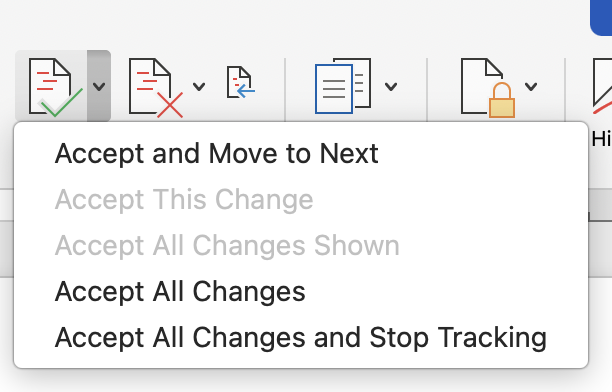
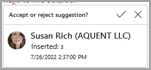
Step 6. Accept or reject changes. When you receive a marked-up document back from the counterparty, use the Next and Previous buttons in the Review tab to walk through each change. You can also click directly on any tracked change to see a card display showing who made the edit and gives you the option to accept or reject it. To accept all changes at once, use Accept All Changes; to clear them all, use Reject All Changes. To compare two versions of a document and produce a fresh redline, use the Compare feature under the Review tab, which generates a third document showing the differences.
For readers who prefer to see the workflow in motion, Microsoft’s official three-minute walkthrough covers the entire process from start to finish:

That is the entire manual workflow. It is reliable, well-understood, and built into a tool that almost every business already owns. It is also where most legal teams still spend a meaningful fraction of their week.
How to Redline in Word
Why redlining in Word breaks at scale
The Track Changes workflow holds up fine for one document at a time. It breaks down across an inventory.
Most general counsel and legal operations leaders manage somewhere between several hundred and several thousand contracts per year. The 2024 World Commerce & Contracting and Deloitte report, “The Purpose of Contracts,” found that 76 percent of legal and contract professionals report inefficiencies in their contract processes, with poor contracting practices costing organizations approximately 9 percent of annual revenue and complex industries losing 15 percent or more.
Evaluating legal technology but not sure where to start?
We help legal departments cut through the vendor noise, mapping technology to process maturity and building a roadmap that actually gets adopted.
See Legal TechnologyFive specific failure modes show up in implementations across mid-to-large enterprises:
Multiple drafts circulating at once, with no clear answer to “which version is current.” Email threads accumulate attachments named “v3 final FINAL with my edits actually final.” Combining the changes manually is slow and error-prone.
Inconsistent application of negotiation positions. Without a documented playbook, the redlines junior counsel applies on a Tuesday do not match the redlines a senior partner applies on Thursday, and the counterparty starts to notice.
No audit trail across documents. Word’s Track Changes captures the trail inside one document. It does not tell you which clauses your team has accepted in twelve other deals this quarter, which is exactly the question that matters when a counterparty pushes back with “you accepted this language for X.”
Counterparty paper handling. When the counterparty sends their template, you have to read it cold, identify deviations from your standards, and propose changes. Doing this from scratch on every counterparty paper is one of the most expensive things a legal department does relative to the legal value created.
Negotiation cycle drag. The often-cited 2018 LawGeex study tested 20 experienced lawyers from firms including Goldman Sachs, Cisco, and Alston & Bird against an AI on five NDAs. The lawyers averaged 92 minutes at 85 percent accuracy. The AI completed the same task in 26 seconds at 94 percent accuracy.
“The AI engine completed the task of issue-spotting in 26 seconds.” Artificial Lawyer, coverage of the 2018 LawGeex NDA study
That study is now eight years old, and modern AI contract review has materially improved on those results, but the underlying point holds: there is a threshold of contract volume and complexity at which manual redlining stops being a craft and starts being a bottleneck.
These breakdowns are why the entire CLM industry has existed for the past decade, and why both Anthropic and Microsoft pushed major Word-redlining releases in April 2026.
What changed in April 2026: AI redlining inside Word
Two product releases in April 2026 changed the practical answer to “how should I redline in Word.”
Claude for Word. On April 10, 2026, Anthropic released Claude for Word in public beta as a native sidebar add-in available through the Microsoft AppSource marketplace. Anthropic positioned legal contract review as the flagship use case. The example prompts on the Claude for Word product page are essentially a contract attorney’s job description: summarize key commercial terms, flag provisions that deviate from market position ranked by severity, make indemnification mutual and insert standard fallback language, work through reviewer comments as tracked changes, and identify which counterparty changes are dealbreakers. Every Claude edit surfaces as a Word tracked change that can be accepted or rejected individually.
The launch was a major moment for the legal market. Anthropic ran a 20,000-attendee webinar demonstrating Claude for Word for legal teams, with Anthropic’s own people walking through contract review workflows in real time. Coverage from Artificial Lawyer on April 23, 2026 noted that the deliberate targeting of legal, the scale of the webinar, and the explicit positioning of Claude as a “legal tech” alternative provider, signaled that Big AI was entering legal not just as a supplier of foundation models to legal tech companies but as a direct competitor. The launch also arrived two months after Anthropic’s legal plugin for the Claude Cowork platform contributed to a single-day market value loss across legal technology and data companies of approximately $285 billion. Claude for Word is available to Claude Team and Enterprise subscribers on Mac and Windows, with Word version 2205 or later on Windows and 16.61 or later on Mac.
Loading Microsoft 365 Copilot in Word video…
Microsoft Copilot in Word with word-level Track Changes precision. Source: Microsoft Tech Community, April 8, 2026. Used with permission from Microsoft.
Microsoft Copilot in Word with Track Changes integration. Microsoft followed shortly after with broader public marketing of Copilot’s own redlining capabilities. The technical foundation had been laid in an early April Microsoft Tech Community post introducing word-level Track Changes precision for Copilot in Word, contextual comments anchored to text, table-of-contents handling, and progress messages for multi-step edits. Microsoft CEO Satya Nadella amplified the message on April 14, 2026, and the broader marketing rollout has continued into early May, explicitly positioning Copilot as capable of updating documents and redlining for legal, finance, and compliance professionals. The features are grounded in Work IQ, Microsoft’s intelligence layer that personalizes responses to your organization’s content, sensitivity labels, and data loss prevention policies. The capability is currently available through the Frontier program on the Office Insiders Beta Channel for Windows desktop, with Word for the web and Mac following.
Not ready to pick a CLM platform yet?
A four to six week diagnostic that maps your current contract lifecycle, sets requirements themes, and tells you what to buy before you sit through another vendor demo.
See the CLM Discovery SprintThe combined effect of these two releases is that AI suggestions inside Word now produce native tracked changes a partner can review. That is the integration most law firms and legal departments have been asking for since 2023, and it closes the gap between “AI generated some text” and “AI participated in the review process without breaking governance.”
OpenAI and the broader provider landscape. AI redlining is no longer a single-vendor capability. ChatGPT and tools built on the OpenAI API can produce redline suggestions through copy-paste workflows or through third-party Word add-ins. Spellbook and InkPaper have built Word integrations over the past two years that surface AI-generated edits as tracked changes. The space has gone from “AI might eventually do this” in 2023 to “multiple major providers and a half dozen specialist vendors all do this today.”
The practical implication is that AI-assisted redlining inside Word is now table stakes, not differentiation. The remaining decisions are about which platform to deploy, how to govern it, and how to integrate it with the contract repository and playbook a serious legal department needs anyway.
What CLM platforms have been doing all along
Contract lifecycle management platforms have offered AI-assisted redlining for years. Onit’s ReviewAI is one example, sitting inside Onit Apptitude and Onit’s CLM products. Ironclad AI Assist, Sirion, Agiloft, Spellbook, Harvey, DocJuris, and Juro all ship comparable capabilities at varying levels of depth.
The CLM-native version of redlining differs from the in-Word version in three ways that matter at scale.
CLM AI sees the playbook. A configured CLM has the firm’s preferred positions, acceptable fallbacks, and walk-away thresholds documented as machine-readable rules. When a counterparty sends paper, the CLM can score every clause against the playbook in seconds and tell counsel what falls inside policy, what falls in the fallback range, and what is a redline-or-walk situation. Copilot and Claude inside Word can do this if you paste the playbook into the prompt or upload it as a reference. The CLM does it automatically because the playbook is already in the system.
CLM AI sees the repository. When a CLM scores a counterparty redline, it can answer “have we accepted similar language before, and on what kind of deal.” Copilot and Claude can do this if you give them access to your past contracts as documents. The CLM does it natively because the repository is the system.
CLM AI sees the workflow. Routing the document to the right reviewer based on counterparty risk, value tier, or clause sensitivity is what a CLM does. Copilot and Claude inside Word are conversational interfaces; they help one person work on one document. The CLM is the orchestration layer that decides who works on what and when.
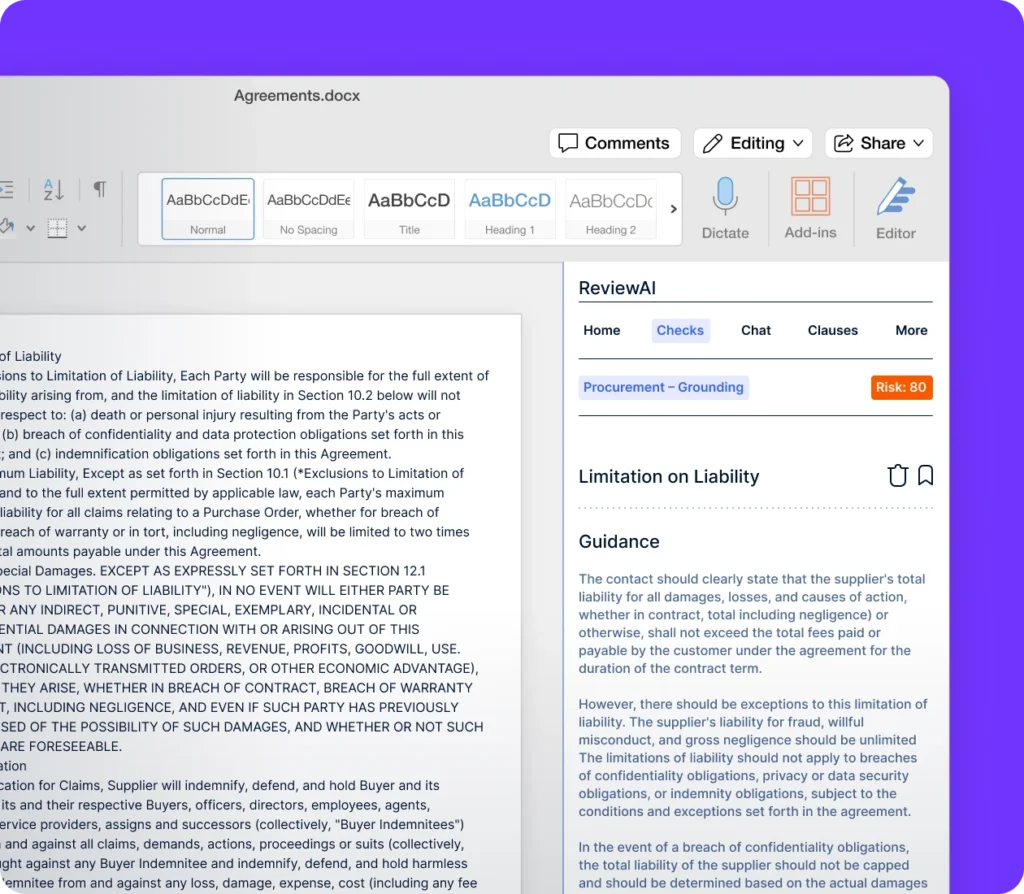
Onit ReviewAI inside Microsoft Word, surfacing clause-level checks and risk guidance. Image Source: Onit Inc.
The practical read in 2026 is that AI inside Word and CLM-native AI are complementary capabilities serving different layers of the problem. A legal department running on Word alone, even with Copilot and Claude, is still missing the routing, the repository, and the playbook governance that a CLM provides. A legal department running a CLM without AI inside Word is still asking its lawyers to manually redline counterparty paper one document at a time. The combination is where the productivity numbers actually move.
How to choose: AI inside Word, a CLM, or both
The right answer depends on volume, counterparty mix, playbook maturity, and the cost of inaction. Three patterns surface across our client base.
Pattern 1: AI inside Word, no CLM. Appropriate for legal teams handling fewer than several hundred contracts per year, where most paper is your standard template, counterparty changes are rare, and the team is small enough that institutional memory lives in three or four people’s heads. Microsoft Copilot at $30 per user per month or Claude for Word at $25 per user per month plus the existing Microsoft 365 license is cost-effective and gets the team meaningful AI assistance without a six-month implementation.
Pattern 2: CLM with AI inside Word. Appropriate for legal teams handling several hundred to several thousand contracts per year, with multiple agreement types, occasional counterparty paper, and a documented or documentable playbook. The CLM holds the repository, the routing, and the playbook. AI inside Word handles the long tail of off-system documents and ad hoc review work.
Pattern 3: CLM-native AI, with AI inside Word as the long tail. Appropriate for legal teams at scale with thousands of contracts, mature playbooks, multiple practice areas, and a real audit obligation. The CLM AI is the workhorse for in-system contracts. AI inside Word is the relief valve for documents that arrive outside the system, for executive review of redlines on a flight, and for one-off drafting tasks that do not warrant a CLM workflow.
The cost-of-inaction question matters in all three patterns. To take an illustrative example, a senior in-house attorney earning $250,000 spending two hours per week on standard redlines that an AI could handle in two minutes represents roughly $13,000 per attorney per year of recoverable capacity. Across a ten-attorney legal department, the math runs to over $100,000 per year before any CLM or AI license cost. This is a representative calculation, not a published case study, and the actual numbers depend on attorney compensation, contract volume, and the percentage of redlining work that is genuinely automatable. The Legal Tech Calculator lets legal teams model the savings, the implementation cost, and the cost of doing nothing for any of these scenarios using their own inputs.
Common mistakes legal teams make when adopting AI redlining
The teams that get the most leverage from AI redlining are the teams that approach it as a triage and acceleration layer, not a replacement for legal judgment. Anthropic’s own product guidance on the Claude for Word page is direct on this point.
“Claude can make mistakes, so always review tracked changes before accepting, especially for client-facing documents.” Anthropic, Claude for Word product page
Six recurring patterns surface in implementations across mid-to-large enterprises.
Treating AI as a replacement rather than a triage layer. AI redlining handles the first pass, surfaces deviations, and proposes language. A senior reviewer still owns the final call on anything material. Teams that try to skip the human review on high-stakes work get burned. Teams that try to keep the human review on every clause do not capture the productivity gain.
No playbook to feed the AI. Copilot, Claude, and CLM AI all perform meaningfully better when given an explicit playbook. The teams that get the most leverage from AI redlining are the teams that documented their preferred clauses, fallback positions, and walk-away thresholds before the technology arrived. For teams without a documented playbook, that work is now the highest-priority project. The Swiftwater Clause Libraries, Contract Templates, and Playbooks guide covers the structure.
No fallback positions documented. Even with a playbook, teams that document only the preferred position leave junior counsel with no guidance when the counterparty pushes back. A complete playbook has three positions per clause: preferred, acceptable fallback, and walk-away. The AI can then propose the fallback when the preferred position is rejected, which is where the genuine cycle-time savings come from.
Ignoring the version control problem. AI inside Word generates changes inside one document. The teams that adopt AI without also fixing the repository and version control problem end up with AI-generated redlines scattered across the same fragmented inboxes and shared drives that the manual workflow already failed to manage. The repository question gets harder when the volume of redlines goes up, not easier.
Skipping training. Copilot and Claude both reward users who understand prompt patterns. The teams that get the highest value from these tools spend an hour with their attorneys on prompt patterns before the rollout. The teams that skip this step end up with attorneys who try one prompt, get a mediocre result, and conclude AI does not work for legal.
No governance plan for AI accuracy and hallucination risk. AI redlining tools, including the major Word integrations, can produce fluent-sounding suggestions that misstate the law, invent citations, or reference clauses that do not exist in the document. Teams that deploy AI redlining without an accuracy review protocol, sample-based audits of AI output against the playbook, and a clear escalation path when the AI gets something wrong are exposed to errors that are harder to catch than human errors because the AI’s confidence is uniform across correct and incorrect output.
Bottom Line
The traditional answer to “how do I redline in Word” still works for one document at a time and remains a foundational skill for any legal or contracts professional. As of April 2026, it is also no longer the only answer, and for most legal teams handling more than a handful of contracts per month it is no longer the best one. Anthropic’s Claude for Word and Microsoft’s Copilot both produce native tracked changes inside Word, the CLM platforms have been doing the same thing for years with deeper governance, and the combined effect is that the manual redlining workflow that consumed senior counsel time for three decades is now the workflow of last resort, not the default.
Learn the manual workflow because you will still use it; deploy the AI tools because the rest of the market already has; and build the playbook the AI tools need because that is the work AI cannot do for you.
A structured readiness and change assessment is built into every Swiftwater CLM discovery sprint. We assess your process, data, stakeholder alignment, and change capacity, give you an honest readiness picture, and lay out the specific gaps to close before you commit to a platform. If you want to know whether your organization is ready for CLM before you spend on one, a CLM discovery sprint gives you that answer in four to six weeks. We also provide full-service contract management solutions.
How to Redline in Word
Frequently asked questions
How do you redline a contract in Microsoft Word?
Open the document in Microsoft Word, go to the Review tab, and click Track Changes. Make your edits as you normally would. Word will automatically mark insertions with an underline and deletions with a strikethrough in your assigned reviewer color. Add comments to specific passages using the New Comment button. Use the Display for Review dropdown to switch between All Markup, Simple Markup, No Markup, and Original views. When you receive a redlined document back, use the Accept and Reject buttons in the Review tab to walk through each change. The keyboard shortcut to toggle Track Changes is Ctrl+Shift+E on Windows and Cmd+Shift+E on Mac.
What is the difference between redlining and Track Changes?
Redlining is the practice of marking up a document to show proposed changes during negotiation. Track Changes is the specific Microsoft Word feature that automates the marking. The terms are often used interchangeably, but the distinction matters: redlining describes what you are doing as a contracts professional, while Track Changes describes the tool that records it. Other word processors have equivalent features, including the Suggesting mode in Google Docs and various AI-native redline interfaces inside CLM platforms. The output of all of them is the same: a visible record of insertions, deletions, and proposed changes that the counterparty can review and accept or reject.
Can AI redline a Word document automatically?
Yes. As of April 2026, Anthropic’s Claude for Word and Microsoft Copilot in Word both produce native Word tracked changes for AI-generated edits, with every change reviewable, accept-or-rejectable, and audit-ready. Anthropic launched Claude for Word in public beta on April 10, 2026 through the Microsoft AppSource marketplace, alongside a 20,000-attendee webinar demonstrating the product for legal teams; it is available to Claude Team and Enterprise subscribers. Microsoft followed with broader public marketing of Copilot in Word’s word-level Track Changes precision, currently rolling out through the Frontier program on the Office Insiders Beta Channel. CLM platforms including Onit ReviewAI, Ironclad, Sirion, and Spellbook have offered AI-assisted redlining for several years, typically with deeper integration with the contract playbook and repository than the standalone Word add-ins provide.
Should I use Claude for Word, Microsoft Copilot, or a CLM for contract redlining?
The right answer depends on volume and complexity. For legal teams handling fewer than several hundred contracts per year on largely standard paper, Claude for Word or Microsoft Copilot inside Word is the most cost-effective starting point. For teams handling several hundred to several thousand contracts per year with multiple agreement types and a documentable playbook, a CLM platform with AI redlining handles the routing, the repository, and the playbook governance that AI inside Word does not. For teams operating at scale across multiple practice areas with mature playbooks and audit obligations, the answer is typically both: CLM-native AI for in-system contracts, and AI inside Word as the relief valve for off-system documents and ad hoc review work.
Is manual redlining in Word still necessary in 2026?
Yes, for two reasons. First, manual Track Changes remains the right answer for low-volume, low-complexity work where the cost of an AI license or CLM exceeds the time savings. Second, manual redlining remains an essential professional skill because every AI redlining workflow ultimately produces tracked changes a human reviewer must accept, reject, or modify. Understanding what Track Changes is doing, how to read markup correctly, and how to navigate the Review tab is the prerequisite for using AI redlining effectively rather than blindly accepting AI-generated edits. The manual workflow has shifted from default to fallback, but it has not disappeared.
Related Swiftwater insights
- What is AI Contract Review?
- Clause Libraries, Contract Templates, and Playbooks
- What is Contract Workflow Management?
- Confidentiality Agreement vs NDA: The Practical Difference
- CLM Implementation Blueprint
- Manage Contracts at Scale (Swiftwater Contract Management)
Disclaimer: This article is provided for educational and informational purposes only. Swiftwater & Company and the author do not provide legal advice. External links and product references reflect publicly available information from the respective vendors and authorities and are provided for reference. Microsoft, Microsoft 365, Microsoft Copilot, and Microsoft Word are trademarks of Microsoft Corporation. Claude is a trademark of Anthropic, PBC. Onit and ReviewAI are trademarks of Onit, Inc. All other product names referenced are the property of their respective owners.